Showing posts with label binary. Show all posts

Wednesday, January 1, 2025

QR Codes vs. Barcodes: What’s the Difference?

When you hear the term QR code, you might think of a coding language. However, it is a fast and efficient method for transmitting data such as images, videos, and links using your smartphone camera or almost any device with a camera.

This is a QR code, you can think of it as a Matrix Barcode, except it's not a barcode. It’s a 2D format capable of storing significantly more data and is primarily used for sharing links, enabling cryptocurrency transactions, and much more. QR codes are now ubiquitous, and you might be missing out on their potential.

What Are QR Codes

QR codes are versatile and easy to use, making them a staple in various industries. For instance, businesses use QR codes for marketing by linking them to websites, promotional materials, or product information. Restaurants have adopted them for digital menus, eliminating the need for physical copies and enhancing hygiene. They are also commonly used in logistics, event ticketing, and two-factor authentication systems.

Creating a QR code is simple and can be done with online generators that allow you to customize the design and purpose. Whether it’s for a URL, Wi-Fi login, or even a virtual business card, QR codes can hold a lot of valuable data in a compact format.

Scanning a QR code is just as easy—most modern smartphones have built-in QR code scanners, often integrated into the camera app. All you need to do is point your camera at the code, and the linked content will appear instantly. This user-friendly functionality has made QR codes a preferred choice for instant data sharing.

As the digital world continues to evolve, QR codes are finding their place in emerging technologies such as augmented reality (AR) and virtual reality (VR). For example, scanning a QR code might take you directly to an AR filter or VR application, acting as a seamless bridge between the physical and digital worlds.

Don't underestimate the power of these small, square grids. Whether you're a business owner, a developer, or just a curious individual, integrating QR codes into your daily life or projects can open up new possibilities. Start exploring the potential of QR codes today!

What is the Difference Between QR and Barcode?

You might have noticed that QR codes are used similarly to barcodes, but there are some important differences between the two.

QR codes, or Quick Response Codes, are distinct from barcodes in several ways. While barcodes are one-dimensional (1D) and can hold limited information (up to 25 characters), QR codes are two-dimensional (2D) and can store over 4,000 characters, making them much more versatile. Additionally, QR codes include built-in error correction using Reed-Solomon algorithms, allowing them to be scanned even if they are partially damaged, and they can be read from any angle. In contrast, barcodes require a specific orientation for scanning.

Barcodes are commonly used in retail for inventory management and pricing because they are easier to scan with dedicated devices. On the other hand, QR codes are more popular in digital marketing, payments, and information sharing due to their ease of smartphone scanning. QR codes are also smaller than barcodes for the same data capacity, making them ideal for compact spaces. This versatility makes QR codes a more dynamic tool, even though they are less commonly used in traditional markets.

Tuesday, December 31, 2024

How Do Barcodes Actually Work?

Have you ever visited a supermarket or a small store and noticed a little rectangle with black lines and some numbers at the bottom? If so, you may have wondered about its purpose. You're in the right place! This page will explain how barcodes work, from being scanned by a barcode reader to how the data is used on a computer. But first:

What is a Barcode?

A barcode consists of a combination of black and white lines that vary in width and spacing. These codes are read by a barcode reader, which decodes the information stored within them. Barcodes typically hold data such as IDs, names, and item descriptions. When scanned, the barcode reader retrieves this information from a database to process transactions or look up details.

Barcodes have many types, and UPC (Universal Product Code) is the most widely used of the others in the picture below.


types of barcodes
These are the most popular types of barcodes

How does the Barcode reader work?

The barcode reader (Also called an optical scanner) has a specific way of interpreting the strips that are on the barcode, depending on its type. The most popular is the CCD (LED scanner), followed by Laser and pen readers. However, this is outside the scope of this post.

The barcode consists of white and black bars (spaces), which are translated by the Barcode Reader, depending on the reader type, the barcode reader reads the barcode usually using a laser or a red light that is then translated by the strength of luminance to analog and then to digital (binary) using an Analog-to-Digital Converter ATD. These electrical charges are then translated into zeros and ones and passed to the computer or by using a wire connection, Bluetooth, Wi-Fi, USB, and even APIs to transfer data. The computer then takes these values and decodes them into an ID or number using the Character Encoding Standard, which depends on the barcode type, mostly Code 128, EAN-13, UPC, or ASCII.

demonstrate how bars are converted to binary
How the bars are converted; source 

demonstrate how barcode reader reads
A simple example of how the bar reader works (laser), Source: https://www.explainthatstuff.com/barcodescanners.html


UCP barcode components

There are 7 components of a UPC barcode; The first component is the Left Guard Bars, whose purpose is to mark the beginning of a barcode, the second one is the Right Guard bars, it's basically the opposite of what the former does, Next coming is The Number system character 0, it indicates the type of product that has the barcode (UPC-A barcodes) E.g., 0 or 1 is for regular retail products, 2 is for variable weight items like produce, etc. 

Furthermore, Center bars are intended to separate the numbers of Manufactory number and the item number which acts as unique identifiers for the items from the same manufacturer and is also assigned by the origin factory. Lastly, there is the check digit, which is a number generated using a calculation that includes other numbers In the bar code, It checks if the manually entered numbers are correct or not otherwise More components collaborate in the barcode, but these are the fundamentals.

There is another very similar and competitive alternative of representing data as machine-readable patterns, a QR code (matrix (2D) codes), You can learn more about QR Codes here

Conclusion 

Barcodes are an important part of saving data in modern commerce and logistics, making the retrieval of data trivial, especially when it comes to computers, they allow the data to be stored in a tiny rectangle and then read by a matching barcode reader. Barcode readers helped significantly in reducing checkout time and tracking inventory since the data is being passed through computers. 

After understanding how barcodes work, we should appreciate what technology has served us, saving us hours and days from doing trivial tasks with this ubiquitous tool. While new advancements like QR codes have expanded the possibilities of data storage, traditional barcodes continue to play a vital role in simplifying and streamlining processes in commerce and logistics.


Thanks for reading
Web AI was used to correct some information

Sunday, December 29, 2024

How is Audio Represented in Binary

What is Audio

Audio is a sound wave under the hood, and I suggest you understand what sound wave is before indulging in this topic, take your time. Soundwave on a surface level is sound vibration in a medium, but unfortunately, this is not a physics class, what is audio on a programmatic level? It's also wave, but it has properties like sample rate, bit rate, and bit depth. To understand this more clearly, think of the sample rate as the number of times a snapshot of a wave has been taken. The usual sample rate is 44.1k and 48k (Reason upcoming).

Audio refers to sound that can be heard by humans, typically in the form of waves that travel through a medium such as air or water. These audio waves are mechanical disturbances that propagate through the medium, carrying energy and information (physics stuff).

Analog to Digital Conversion

Before you get any deeper, let me introduce you to how a wave that is physics is translated to zeros and ones in the first place. The process of converting analog audio waves to digital format involves several steps:

1. Transduction: A microphone (transducer) converts sound waves into an electrical signal.
2. Sampling: An Analog-to-Digital Converter (ADC) takes snapshots of the analog signal at regular intervals. These intervals are called Sample Rate.
3. Quantization: The amplitude of each sample is measured and assigned a digital value.

Sample Rate

Now the fun part :), Sample rate is the number of samples taken per second when converting an analog signal to digital. It's measured in Hertz (Hz) or kilohertz (kHz). Common sample rates include:

- 44.1 kHz (CD quality)
- 48 kHz (standard for video and film)
- 96 kHz (high-resolution audio)

The sample rate determines the highest frequency that can be accurately represented in the digital signal. According to the Nyquist theorem, the sample rate must be at least twice the highest frequency in the signal to avoid aliasing.

Getting Deeper into Sample Rate

The common sample rate of 44.1 kHz was chosen primarily for compatibility with early audio technologies and is rooted in both technical and practical reasons:

  • According to the Nyquist theorem, the sample rate must be at least twice the highest frequency in the audio signal to accurately reproduce it without aliasing (Example in the picture).
  • Humans typically hear frequencies up to 20 kHz, so a minimum sample rate of 40 kHz is needed.
  • 44.1 kHz provides a safe margin above 40 kHz to account for filter imperfections during analog-to-digital and digital-to-analog conversion.

What is Frequency, And How Does it Relate to Sample Rate?

When talking about sound, frequency, which is part of waves (my brain already hurts), refers to how fast the sound wave vibrates. Higher frequencies are higher-pitched sounds (like a whistle ~ spiky wave), and lower frequencies are deeper sounds (like a bass drum ~ small wave). The human hearing range typically spans from 20 Hz (low bass) to 20,000 Hz (20 kHz) (high pitch).

Now, when we convert sound into digital form, we need to take samples of the sound wave at regular intervals. The more samples we take, the more accurate the digital version will be. The sample rate determines how often we take those samples.

Twice the frequency rule: For the digital version to accurately represent the wave without distortion, the sample rate must be at least twice the highest frequency we want to capture. If you try to sample fewer times than that, the digital version can "mishear" the sound and create weird distortions.

So, if you're capturing sounds with a frequency up to 20 kHz (the highest sound humans can hear), your sample rate should be at least 40 kHz to avoid distortions. This is why 44.1 kHz (CD quality) is a common standard.

But Awad, what if the highest frequency of the sound is 80k? well, first of all, you can't hear it, and second, you won't use it unless you're a scientist who is working with ultrasounds, then you need to sample the sound at a 160k sample rate or even more to get an accurate representation when converted to digital.

Now you have a much deeper understanding of the sample rate. Moreover, 44.1 kHz was chosen because it satisfied human auditory limits (Nyquist theorem), was practical with early video technology, and balanced quality with data storage constraints. It remains a standard due to its widespread adoption and backward compatibility with existing systems.

High frequency vs low frequency waves
If you use a low sample rate on the high-frequency waves (supposing it is audio), then you're gonna lose a lot of info, think about it, a moment you're down the next moment you're at the top. source

An Example of how Analogue waves are sampled into digital waves
An Example of how Analogue waves are sampled into digital waves, the lower the sample rate the higher the Aliasing, the source

Bit Depth 

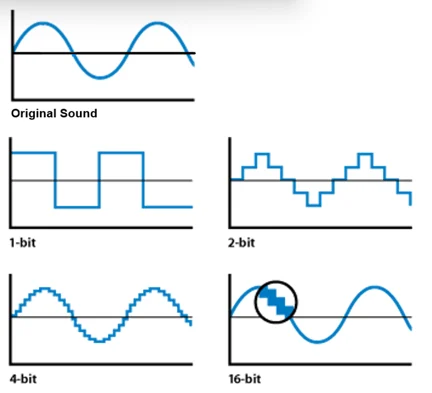
Bit depth refers to the number of bits used to represent each audio sample. It determines the resolution and dynamic range of the audio. Common bit depths include:

- 16-bit (CD quality)
- 24-bit (professional audio production)
- 32-bit (high-end audio equipment)

A higher bit depth allows for a more precise representation of the audio signal and a greater dynamic range.


A picture demonstrating how bit-depth affect the audio
Aliasing


Bit Rate

Bit rate is the number of bits used to represent one second of audio. It's calculated by multiplying the sample rate by the bit depth. For example:

44.1 kHz sample rate * 16-bit depth = 705,600 bits per second (or about 706 kbps)

Relationship Between Sample Rate, Bit Depth, and Bit Rate

Now for the real deal:

- Sample rate determines how often the analog signal is measured.
- Bit depth determines how precisely each measurement is stored.
- Bit rate is the product of sample rate and bit depth, representing the total amount of data per second.

A higher sample rate captures more detail in the time domain, while a higher bit depth captures more detail in the amplitude domain. Together, they contribute to the overall quality and file size of the digital audio.

In summary, converting analog audio waves to digital format involves sampling the continuous analog signal at a specific rate (sample rate) and representing each sample with a certain precision (bit depth). The combination of these factors determines the bit rate and overall quality of the digital audio representation.


Note: This post is subject to rework, please if you have suggestions don't hesitate to comment.

Sources:

Wednesday, December 25, 2024

What Are Array Buffers, Uint8Array, and Base64 in Javascript

Binary Data in JavaScript 🖥️

Before diving into this topic, it's important to understand what binary data is and how it relates to creating an image or a file. This overview is not intended to be an in-depth exploration; it's meant to provide you with a basic understanding of these concepts and how they work together.

Working with binary data, like files, images (Read how images are presented), or streams, in JavaScript often involves concepts such as ArrayBuffer, Uint8Array, and Base64. Whether you're new to this or have forgotten these concepts, I'm here to break them down for you.

What is an ArrayBuffer?

ArrayBuffer is not an array of something.

Let’s eliminate a possible source of confusion: ArrayBuffer has nothing in common with an Array.

Key Characteristics of ArrayBuffer:

  1. Fixed Length: The length of an ArrayBuffer is fixed; we cannot increase or decrease it.
  2. Memory Usage: It takes up exactly the specified amount of space in memory.
  3. Accessing Bytes: To access individual bytes of data, we need to use a "view" object, such as a TypedArray. You cannot use buffer[index] directly.

An ArrayBuffer is a fixed-length block of raw binary memory in JavaScript. You can think of it as a "container" for storing a sequence of bytes. However, it doesn’t interact with the data directly—it serves as the base structure for typed arrays, like Uint8Array, that allow you to manipulate the data.

Example:

Creating an arraybuffer example javascript

This code reserves 16 bytes of memory (128 bits) in the memory, which is maintained by JavaScript's garbage collector. You can't resize the buffer, you must create a new one. An ArrayBuffer acts as a memory space, and you manipulate it using typed arrays like Uint8Array.

When to Use an ArrayBuffer?

  • File and Network Operations:
    - Reading files (images, videos).
    - Handling binary protocols (e.g., WebSockets, streams).
  • Data Parsing:
    - Manipulating binary data formats (e.g., .png, .wav files).
    - Decoding/encoding binary protocols.
  • Web APIs:
    - Used with APIs like fetch() to handle raw data (e.g., response.arrayBuffer()).

What is a Uint8Array 

Uint8Array Stands for "Unsigned 8-bit Integer Array". It's a subclass of TypedArray and provides a way to interact with binary data stored in an ArrayBuffer.

How Does It Work?

A Uint8Array allows you to read and write binary data in 8-bit chunks (values between 0 and 255).


Using array buffer with typedArray javascript

Uint8Array is specifically designed to work with binary data in a simpler, more efficient way. It’s commonly used for manipulating binary data like images, audio, and more.

Other Typed Arrays

There are other types of TypedArray classes that handle larger data sizes, such as:

These classes work similarly to Uint8Array but handle different data sizes.

What happens if Uint8Array Overflow

If you try to use a Uint8Array to save an image with a bit depth of 32, it will not be able to directly store the full 32-bit value. The Uint8Array only stores 8-bit values (ranging from 0 to 255).

For example, if a pixel has a value of 4 million (which in 32-bit binary is 00000000001111010000100100000000), and you try to store it in a Uint8Array, the value will be truncated using modulus arithmetic. Specifically, 4 million % 256 equals 0, so the pixel value stored in the Uint8Array would be 0.

This demonstrates that the 32-bit range (which can store much larger values) gets reduced to the 8-bit range of the Uint8Array when the data is stored, losing much of the original information.

Base64: Encoding Binary as Text 🔏

Base64 Is a method for encoding binary data into a string format, making it suitable for text-based protocols like JSON or HTTP. It converts binary data (which can't be easily transmitted via text-based protocols) into an ASCII string.

Why Use Base64?

Base64 is particularly useful for transmitting images or other large binary data as text. For example, an image can be converted into a Base64 string, making it easier to send over the web.

For example, the string "Hello World" in binary:

01001000 01100101 01101100 01101100 01101111 00100000 01010111 01101111 01110010 01101100
01100100

Converts into Base64 as:

SGVsbG8gV29ybGQ=

Base64 encoding increases the size of the data by approximately 33%, but it makes the data compatible with text-based formats. While you wouldn’t encode "Hello World" in a practical scenario, you do need to convert files that consist of binary arrays and array buffers.

Converting Uint8Array to Base64 🔄

You can convert Uint8Array data to a Base64 string using the btoa function:

Converting a Uint8Array to Base64 Javascript

This function converts a Uint8Array to a Base64-encoded string. Where btoa() means binary to ASCII and vice versa with atob()

How These Concepts Work Together 🤝

  1. ArrayBuffer: Stores raw binary data.
  2. Uint8Array: Provides an interface for manipulating that data.
  3. Base64: Encodes the data for storage or transmission in text formats.

Example Workflow:

  1. Download an image and store it in an ArrayBuffer.
  2. Manipulate the image data using a Uint8Array.
  3. Encode it in Base64 to send it via HTTP or embed it in a JSON file.

By understanding these three concepts—ArrayBuffer, Uint8Array, and Base64—you can easily work with binary data in JavaScript, whether you're dealing with file uploads, network protocols, or APIs.

Wrapping Up 🎉

That's it! I know this might be superficial, but this is my first educational post ever, and I hope one of you finds this helpful. Here is a summary of what you have just read:

  1. ArrayBuffer:

    • A fixed-length block of raw binary memory in JavaScript.
    • It doesn't store data directly but serves as a container for binary data that can be manipulated with typed arrays like Uint8Array.
    • Example: new ArrayBuffer(16) Creates a buffer of 16 bytes.
  2. Typed Arrays (Uint8Array):

    • TypedArray is an array that represents a specific numeric type, such as Uint8Array for 8-bit unsigned integers.
    • It interacts with an ArrayBuffer to manipulate the binary data.
    • Example: let arr = new Uint8Array(buffer) Allows modifying data in the buffer.
  3. Base64 Encoding:

    • Converts binary data into a text format, often used for transmitting data like images in text-based protocols like JSON or HTTP.
    • Example: "Hello World" converted to Base64 is SGVsbG8gV29ybGQ=.
  4. Converting Between Formats:

    • btoa() and atob() are used to convert binary data to Base64 (binary-to-ASCII) and Base64 back to binary (ASCII-to-binary).

Example Workflow:

  • Download an image → Store in an ArrayBuffer → Use Uint8Array to manipulate the data → Convert to Base64 for transfer.
For a more comprehensive guide about array buffers visit Javascript.info

How does binary present an image (Raster Graphics)?

Binary code serves as the fundamental language of computers, and developers use it everywhere—in the text you're reading and on the screen you’re looking at. It is an integral part of our digital lives. But how does a code made up of just 0s and 1s create an image? You're in the right place to find out!

At its core, binary consists of 0s and 1s. Each bit can be either a 0 or a 1, and a byte is made up of 8 bits. Because of this, there are 256 possible combinations of 0s and 1s in a byte, calculated by the formula 2^8. This raises the question: how can this sequence of numbers form an image that we can recognize? But first, let’s explore what an image actually is.

What is an image?

An image is just pixels, your graphics card decides how many bits are on one pixel using the bit-depth setting, a bit depth of 8 means that 255 different colors can be represented in that pixel, and so on. 

GrayScal image example using 1-byte or 255 color values
GrayScale image example using 1-byte or 255 color values

This is an example of what's going on, as you can see, the picture is very unclear and that's because it's just 12x16 pixels with a depth of 8. Here is another image to show you how different an 8-bit to a 16-bit can be... we're talking about a difference of almost 63000 other colors, mind-blowing isn't it? We'll continue with the 8-pixel just to keep it simple, you don't wanna see a 5-figure number on a pixel. As a reminder: 8bit-depth means that there is 1 byte in each pixel.

Contrast between 8-bit and 16-bit colors

That's gotta be all about it to fundamentally understand what an image consists of, but how is it presented?
How is the image presented?
The image, let us say you have an image of resolution 128x128, Which is 128 pixels multiplied by another 128, which is a square, your graphics processor will ask the image, how do I draw you? The image will respond with the bit depth and the byte for each pixel in the 128x128 You can think of it as pixel grid.

What is image resolution:

Resolution is the number of pixels in an image, for example, an image of 128x128 has 16,384 pixels, meaning it has a fixed resolution, unlike a vector that has dynamic resolution no matter how you scale it.

Here is where the color code comes in:
  • RGB (Red, Green, Blue): Each pixel has values for red, green, and blue (e.g., 255, 0, 0 For red).
  • Grayscale: since the grayscale is 1 byte, A grayscale image with the same resolution is one-third the size of an RGB image.
  • RGBA: Same as RGB, but with an extra alpha value for transparency.
  • Other formats like CMYK C for cyan, M for magnate, Y for Yellow, K for Black (used in printing), or grayscale (for black-and-white images).
Example of 1-byte colors

There are also image file types called bitmap (Raster Graphics) that use bits to represent the colors, unlike vectors, that use math like SVG and EPS:

JPEG (Joint Photographic Experts Group)

  • Raster, compressed (lossy).
  • Supports 24-bit RGB color (16.7 million colors).
  • No transparency support.
  • Good for photos with smooth color gradients.

PNG (Portable Network Graphics)

  • Raster, compressed (lossless).
  • Supports 8-bit grayscale or 24-bit RGB.
  • Transparency (alpha channel) supported in 32-bit PNG.
  • Good for graphics, icons, and images needing transparency.

BMP (Bitmap)

  • Raster, uncompressed, or minimally compressed.
  • Supports various bit depths: 1-bit, 8-bit, 24-bit.
  • Large file sizes; rarely used now.

GIF (Graphics Interchange Format)

  • Raster, compressed (lossless).
  • 8-bit color palette (256 colors).
  • Supports simple animations and transparency.

TIFF (Tagged Image File Format)

  • Raste supports multiple-bit depths.
  • Often used in high-quality printing and archiving.
  • Lossless compression or uncompressed.

SVG (Scalable Vector Graphics)

  • Vector format, not pixel-based.
  • Can embed raster images (e.g., PNG, JPEG) if needed.
  • Scalable without losing quality.

You might be wondering why we refer to only 255 colors when RGB uses 3 bytes. In reality, developers create RGB using 3 bytes, totaling 24 bits, which allows for nearly 2^24 or 16,777,216 possible colors.

Now, let’s recap: the GPU requests color details and dimensions from an image, and the image provides information such as 128x128. This means the image has a grid of 128 rows and 128 columns. Images store pixel data in a file and the GPU reads and processes this data. Each grid spot (or pixel) contains a color defined by 3 bytes. 

To clarify this further, let's consider a much smaller example: a 2x2 image.

2 x 2 pixels data:
  1. row 1 column 1 (pixel 1): RGB(0,0,0)
  2. row 1 column 2 (pixel 2): RGB(255,0,0)
  3. row 2 column 1 (pixel 3): RGB(0,255,0)
  4. row 2 column 2 (pixel 4): RGB(0,0,255)
these particular RGB values are arbitrary.

What is a bit-depth?

The bit-depth, in a complex level, refers to the amount of data stored in each pixel. Essentially, the higher the bit-depth, the larger the file size, but why is that the case? Let's take an image size of 1280x720 as an example, using a 32-bit depth.

So, what does 32-bit depth mean? At 32 bits, which corresponds to 4 bytes, we have a grid array of 1280x720 pixels. Each pixel consists of 32 bits, which can be interpreted as a sequence of zeros and ones. To calculate the total number of bits for this image, we multiply the width by the height and then by the bit depth: 

1280 pixels x 720 pixels x 32 bits = 29,491,200 bits. 

Since there are 8 bits in a byte, we convert this to bytes by dividing the total bits by 8. This results in:

29,491,200 bits ÷ 8 = 3,686,400 bytes, or approximately 3.68 MB. 

Now, just imagine how different the file size would be if we had only used standard RGB or grayscale instead of RGBA.

It's worth noting that the 4 bytes we refer to typically correspond to RGBA (Red, Green, Blue, Alpha), with the Alpha channel representing opacity.

How to calculate image size

This oversimplifies what happens but you get the idea; RGB doesn't send like this; it actually sends by binary. RGB(255,0,0) represents 111111110000000000000000, which is a bright red color. And obviously, the larger the bit depth the larger the file size, because bytes are the size of everything on your computer, KiloByte, Mega, Tera, since in RGB we have 3 bytes then 1 pixel is equal to 3 bytes of data, there are 128x128 pixels and therefore the image size is 128x128x 3bytes= 48 Kilo Byte or 393,216 Kilo Bit.
Another example of how pixels are affected by bit depth


In summary, an image is essentially a data file containing information about its type, resolution, and color representation (bit depth). This data is interpreted by the graphics processor, which determines how each pixel is displayed based on the stored color and resolution details. This seamless process transforms binary data into the visuals we see on our screens, showcasing the power of digital representation.
How the pictures metadata (dimension/bitdepth) are saved
How the pictures metadata (dimension/bit-depth) are saved

This is how the image describes itself: dimensions, bit depth and the dpi.

Moreover, DPI (Dots Per Inch) refers to the number of printed dots contained within one inch of an image printed by a printer. PPI(Pixels Per Inch) refers to the number of pixels contained within one inch of an image displayed on a computer monitor. SONY.

What is PPI

PPI (Pixels Per Inch) plays a key role in how images are displayed on screens. For example, imagine an image with a resolution of 128x128 pixels displayed on a monitor with a resolution of 1920x1080 pixels. If the PPI is set to 1 (hypothetically), the image will appear very small on the screen. However, when you zoom in on the image, it fills more of the screen.

So, how does this work despite the image's small dimensions? When you zoom in, the image is scaled to match your screen's resolution. This means that the number of pixels per inch on the screen increases, causing each image pixel to take up more screen pixels, which can make the image appear larger.

To make the image more visible, the computer scales it, but this process can reduce the image's quality unless it is a vector graphic, which can be scaled without losing resolution. I hope this clears things up!

How does an ArrayBuffer represent an image (Javascript)?

An ArrayBuffer in JavaScript represents an image by storing the binary data of each pixel in the image. Essentially, an image is a grid of pixels, and each pixel's color is represented by bits. The size of this grid determines the resolution of the image.

When an image is saved to an ArrayBuffer, the buffer holds the binary data for every pixel. The more bit-depth (the number of bits used to represent each pixel), the more memory the ArrayBuffer requires. For instance, a higher bit-depth allows for a greater range of colors but also increases the file size.

The maximum size of an ArrayBuffer is 2GB (approximately 2,147,483,647 bytes). This is sufficient to store approximately 85 images with 4K resolution (3840 x 2160 pixels) at a 24-bit color depth.


Thank you for reading.